5 iOS 27 Shortcuts That Could Make Your Next Trip Way Less Annoying
iOS 27 could make Shortcuts much easier to build, and these are the five travel automations worth setting up first if you want your iPhone to handle more of the repetitive trip stuff for you
Quick Take
- iOS 27's easier Shortcuts setup could finally make this feature practical for normal travelers, not just power users.
- The best travel shortcuts are not flashy, they just remove the same little friction points over and over.
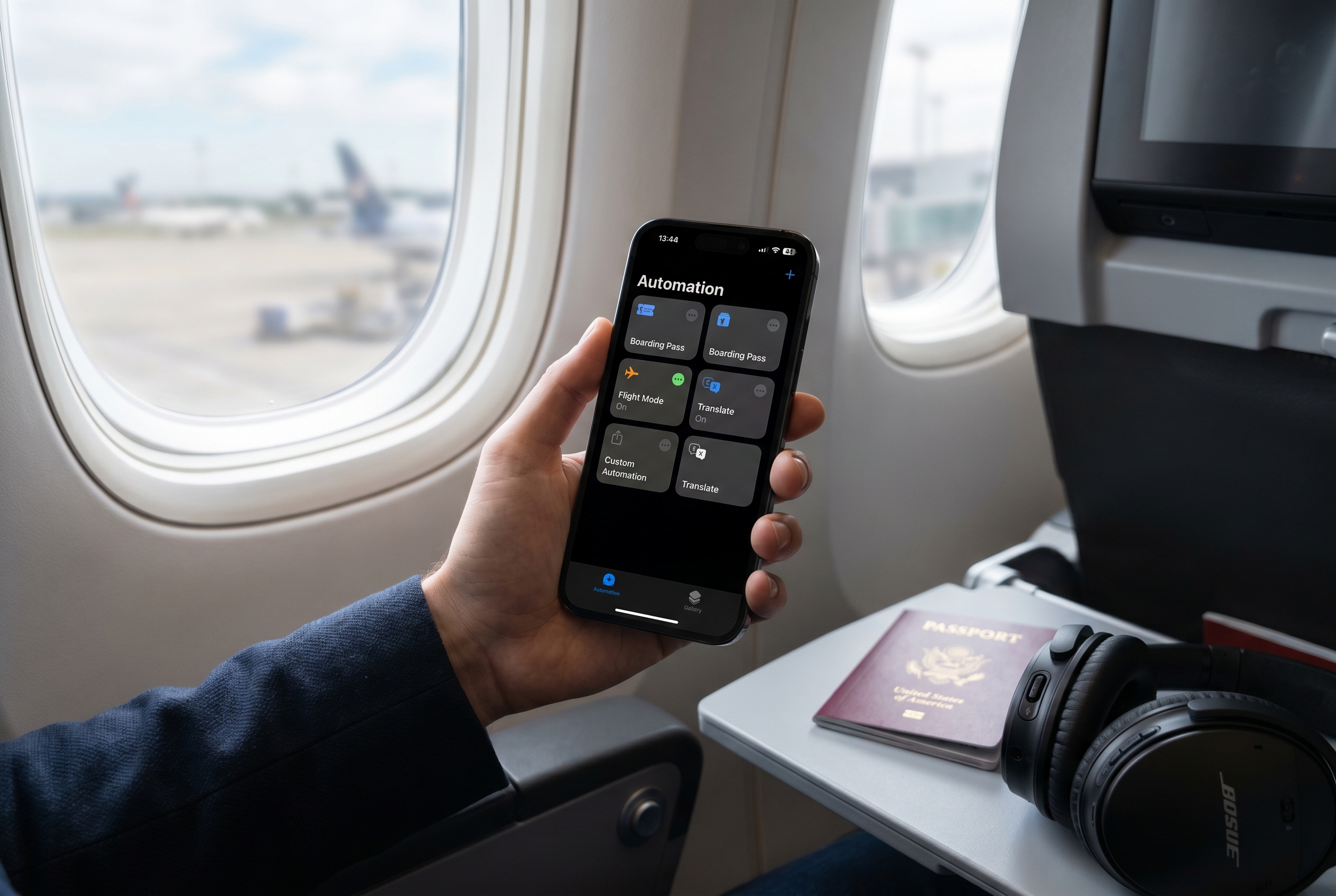
The interesting part of iOS 27 is not just that Apple may make Shortcuts more powerful. It is that Apple may finally make them easier for normal people to build.
That matters for travel because travel is full of repetitive little tasks your phone should already be helping with. If iOS 27 really makes it easier to describe a shortcut in plain language and get something useful back, these are the first five I would set up.
1. Open your boarding pass when you get to the airport
This is the cleanest travel shortcut idea of the bunch.
What it should do
- open your Wallet boarding pass
- open your airline app
- optionally open a saved trip note with gate, seat, or confirmation details
Best trigger
- When I arrive at the airport
Plain-language prompt to try
- When I arrive at the airport, open my boarding pass, my airline app, and my trip note
This is useful because it removes one of the most repetitive airport routines, which is unlocking your phone and hunting for the same pass over and over.
2. Turn on battery-saving mode before your phone gets cooked
Travel days are brutal on battery life. Maps, rideshare, photos, messages, and bad signal all pile up fast.
What it should do
- turn on Low Power Mode
- lower screen brightness
- optionally turn off Bluetooth or Personal Hotspot
Best trigger
- When battery drops below 25%
Plain-language prompt to try
- When my battery drops below 25%, turn on Low Power Mode, lower brightness to 40%, and turn off Personal Hotspot
This is not glamorous, but it is exactly the kind of shortcut that helps on a long airport day or a city day when you are trying to stretch one charge as far as possible.
If battery planning is already on your mind, TrekSavvy's mAh vs. Wh explainer is still worth bookmarking before a longer trip.
3. Build a hotel check-in shortcut
Hotel arrivals always come with the same little setup routine.
What it should do
- turn on a Hotel Focus mode
- open the hotel booking or confirmation note
- open your saved Wi-Fi password note
- set a wake-up alarm for the next morning
Best trigger
- When I arrive at my hotel
Plain-language prompt to try
- When I arrive at my hotel, turn on Hotel Focus, open my hotel reservation, open my Wi-Fi note, and set a 7 a.m. alarm
This is one of the clearest examples of where easier shortcut building would actually help normal people. The logic is simple, but most people would never bother assembling it by hand.
4. Start an arrival mode the second you land
Landing is when everything stacks up. You need directions, hotel info, maybe a text ready to send, and you usually want it all before your brain is fully back online.
What it should do
- open Maps to your hotel, rental counter, or first stop
- text a saved contact that you landed
- open a trip note with confirmation numbers or addresses
- switch to a destination-specific Focus mode
Best trigger
- When Airplane Mode turns off after landing
- or when I arrive in [city name]
Plain-language prompt to try
- When I turn off Airplane Mode after a flight, open Maps to my hotel, text Sarah that I landed, and open my trip note
This is the one I would want after a long flight, because it takes the first few annoying decisions off your plate.
5. Run a nightly travel photo backup
If you shoot a lot while traveling, your phone becomes a bigger single point of failure every day.
What it should do
- find photos taken today
- add them to a trip album
- save them to a backup folder in Files, iCloud Drive, or Dropbox
- optionally remind you to offload them to an SSD later
Best trigger
- At 9 p.m. every night while Travel Focus is on
Plain-language prompt to try
- Every night at 9 p.m. while Travel Focus is on, add today's photos to my Japan album and save them to my trip backup folder
That last part matters more than people think. If you are traveling with external storage, something like the Lexar Professional Go Portable SSD makes this kind of routine much easier to stick to.
Why iOS 27 Could Finally Make This Useful
The main problem with Shortcuts has never been the idea. It has been the setup friction.
The feature has always made sense in theory, but it has usually felt like something for people who enjoy building workflows for fun. If iOS 27 actually makes it easy to describe what you want and get a usable result back, travel is one of the first places that becomes immediately practical.
The TrekSavvy Take
If Apple gets this right, Shortcuts could become one of the most useful sleeper travel features in iOS 27.
Not because the automations are dramatic, but because they remove the same little hassles again and again. That is what good travel gear does, and your iPhone should absolutely count.