How to Add Books to the XTEINK X4 Pro
Load books onto the XTEINK X4 Pro with the phone app and Cloud Sync or a computer in USB Mode, then check your files before leaving for a trip.
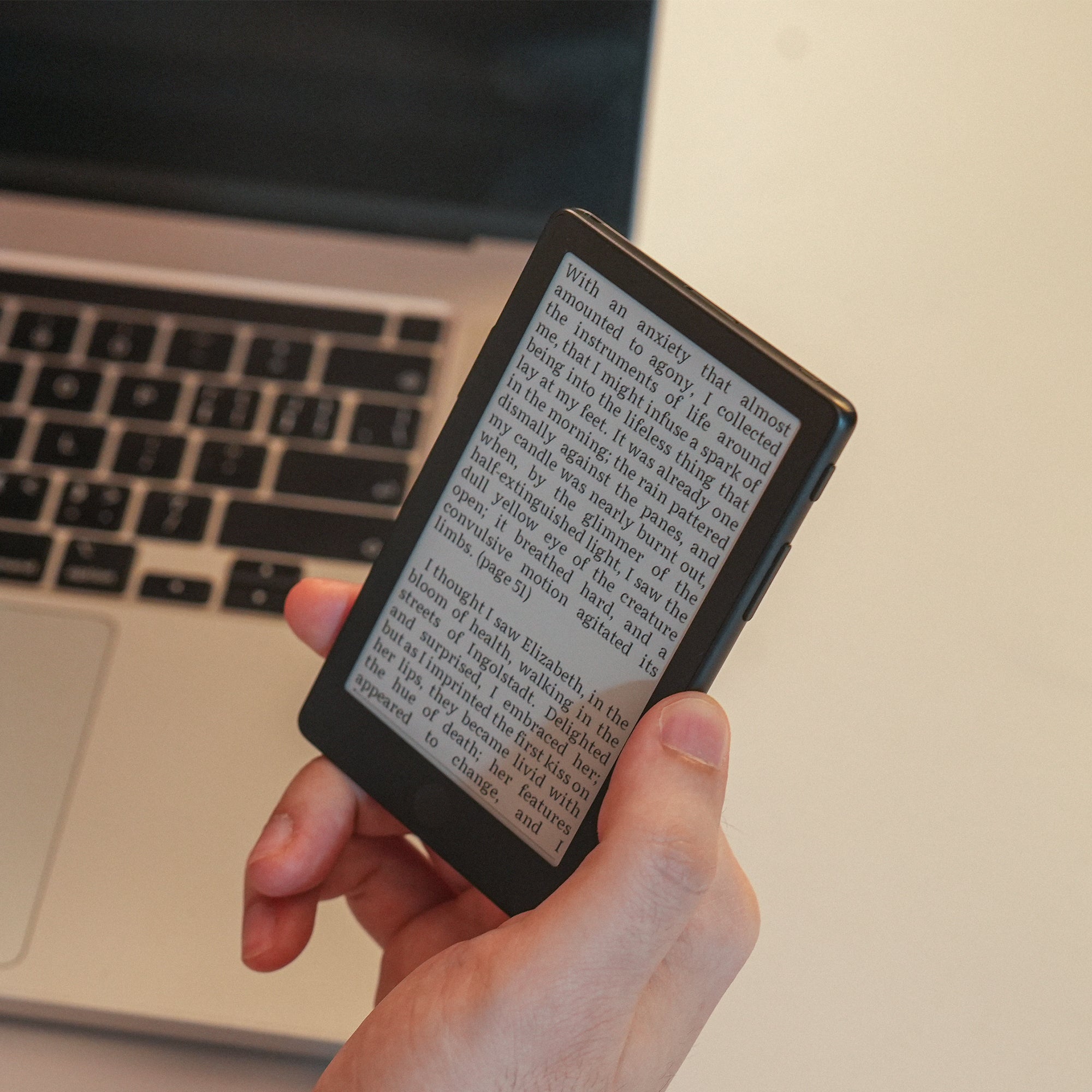
The XTEINK X4 Pro has two straightforward ways to add books: import a file through the phone app and run Cloud Sync on the reader, or connect it to a computer and select USB Mode. Start with an EPUB or TXT file you are allowed to copy. A book sitting in a store account is not the same thing as a compatible local file.
These instructions are for the X4 Pro running XTEINK's stock firmware, not the original X4, X4 Classic, or X3. If you are still sorting out the models, our X4 Pro vs X4 Classic comparison covers the hardware choice. You do not need a third-party firmware installation for the two methods below.
Before you transfer anything
Find the actual book file on your phone or computer first. EPUB and TXT are the document formats listed in the Pro's detailed specifications. Do not assume a PDF, MOBI file, Kindle purchase, or library loan will open just because it is an ebook. XTEINK advises checking compatibility for other formats and DRM-protected books; copying a file does not remove its restrictions.
For a new reader, finish the initial setup in the X4 Pro Quick Start Guide. It walks through charging, network setup, and checking for system updates. The Pro uses 2.4GHz Wi-Fi, so make sure that network is available if you plan to use the app.
Add books from your phone with Cloud Sync
Use this route when the book file is already on your phone and you do not want to get out a computer.
- Bind your X4 Pro to the XTEINK companion app.
- Connect the reader to Wi-Fi.
- In the app, open Devices, choose your X4 Pro, then tap Import.
- Select the compatible book file stored on your phone.
- On the reader, open the upper-right menu and choose Cloud Sync.
Do not stop at the phone's import step. Cloud Sync on the reader is a separate part of XTEINK's documented workflow. Once it finishes, find the book on the Pro and open it there.
Use XTEINK's app link or QR code in the Quick Start Guide to get the companion app. The reader's Wi-Fi setup is under Settings → Network & Connection. If your network does not appear, check that it has 2.4GHz enabled; a 5GHz-only network is not the right connection for this reader.
Transfer books from a computer in USB Mode
Use this route when your files are on a computer and you want to copy them directly.
- Connect the X4 Pro to your computer using a compatible USB data connection.
- Open the upper-right menu on the reader.
- Select USB Mode.
- Once the reader appears on the computer, copy your compatible book file to it.
Wait for the copy to finish, safely eject the device from the computer, and disconnect. Then open the book on the Pro.
The Pro does not have the original X4's direct USB-C socket. Its Quick Start Guide identifies the included accessory as a pogo-pin-to-USB-C adapter. Keep that adapter with your cable rather than packing a cable alone. A charging light is not a substitute for the reader appearing on the computer in USB Mode.
If the book does not appear or open
Separate a connection problem from a book problem before repeating the whole transfer.
- The computer never shows the reader: confirm USB Mode is selected and check the adapter and cable connection. Use a cable suitable for data transfer, not a charge-only connection.
- The app import did not put the book on the reader: check the Pro's Wi-Fi connection and run Cloud Sync on the Pro, not just Import on the phone.
- The file copied but will not open: check its format and any DRM restrictions. Try one known-compatible EPUB or TXT file to narrow down whether the problem follows that particular book.
Do not format the storage or flash different firmware as a first response to one missing book. For a problem that persists with a compatible file, use XTEINK's Pro support guidance and describe which transfer route failed. Menu wording can change with system updates; the Pro's own screen takes precedence over an older screenshot.
Check it before the flight
Open each book you intend to read, turn a few pages, and check that the text is usable. Then disconnect from Wi-Fi and reopen the actual book you plan to take. This is a check to do with your files, not a promise that every store download will work offline.
Do it at home while you still have the file, network, and cable handy. Discovering that you imported the wrong format is much easier to fix there than after boarding.