How to Pair AirFly Pro 2 with AirPods (and a Second Pair)
Pair AirFly Pro 2 with AirPods using TX mode and PAIR 1, add a second pair with PAIR 2, and fix pairing or silent-audio problems before your flight.
To pair AirFly Pro 2 with AirPods, set the AirFly to TX, put your AirPods into pairing mode, and turn the AirFly on. If PAIR 1 does not flash white and amber, hold PAIR 1 for four seconds. The two devices find each other automatically; you do not select AirFly in your iPhone's Bluetooth menu.
For a second listener, connect the first pair completely before using PAIR 2. That order matters more than repeatedly pressing the pairing buttons.
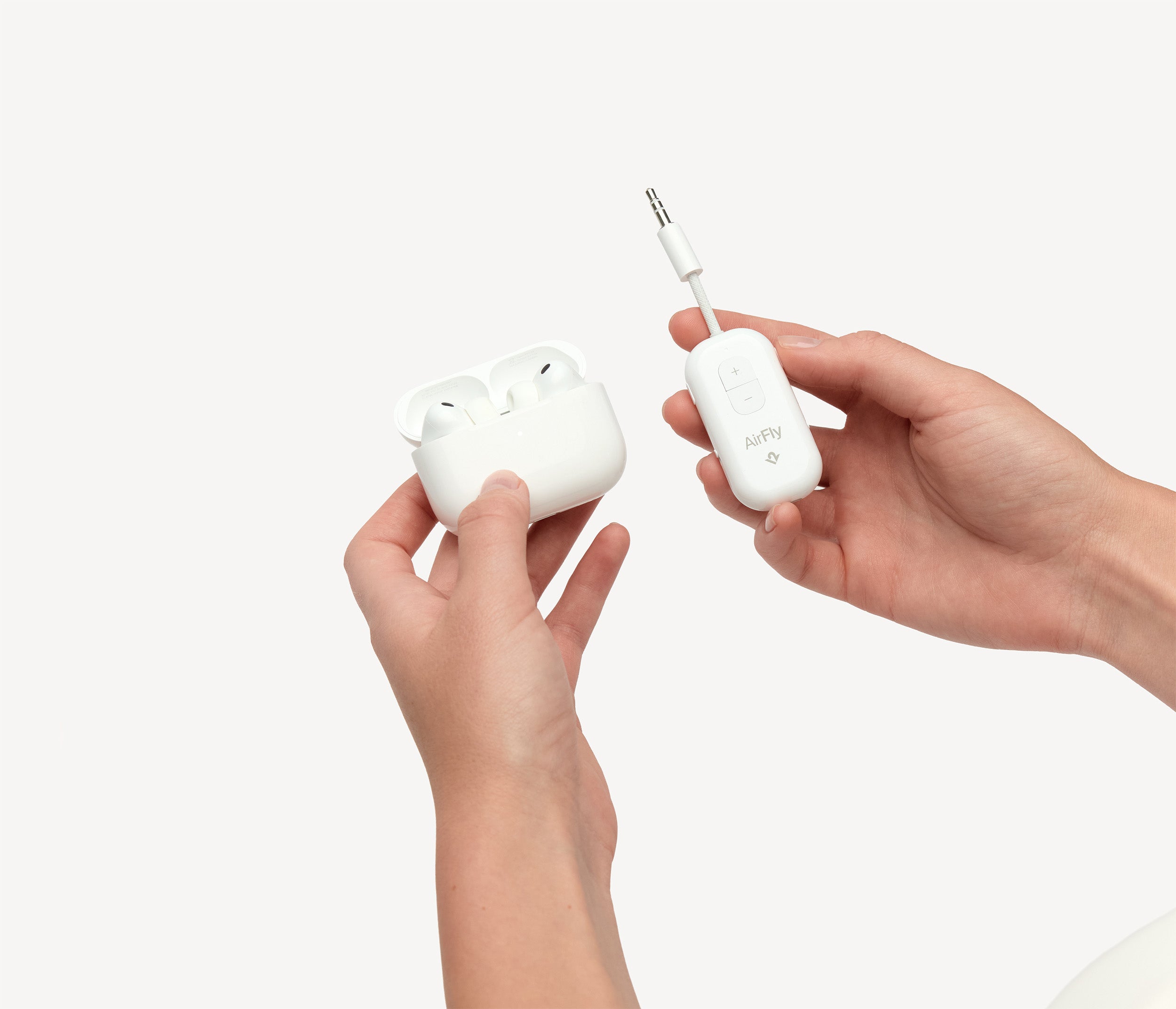
Start in TX mode, not RX
TX sends the seatback screen's audio to your headphones. RX does the opposite sort of job: it receives Bluetooth audio from a phone and feeds a wired AUX input. Use the side TX/RX switch to choose TX for AirPods and a headphone jack. Twelve South explains the two directions in its TX/RX guide.
Charge the AirFly and your headphones before you leave. You can do the pairing at home, then test it with a device that has a working 3.5mm headphone output. That separates a pairing problem from a seatback-system problem while you still have time to sort it out.
These steps are for AirFly Pro 2, with separate PAIR 1 and PAIR 2 buttons and front volume controls. Do not follow an original AirFly Pro or AirFly SE button sequence just because the names look similar.
Put your particular AirPods into pairing mode
Opening the case alone is not the whole step. You need the white flashing status light before asking AirFly to connect.
| AirPods model | What to do |
|---|---|
| AirPods 1, 2 or 3; AirPods Pro 1 or 2 | Leave both earbuds in the case, open the lid, and hold the rear setup button for about five seconds, until the light flashes white. |
| AirPods 4 or 5; AirPods Pro 3 | Leave the earbuds in the open case and double-tap the front of the case until the light flashes white. |
| AirPods Max | Hold the listening-mode button for about five seconds, until the light flashes white. |
Apple's non-Apple-device pairing instructions cover these model differences. The newer case's front gesture is easy to miss if you are following older instructions that tell everyone to find a rear button.
Connect the first pair with PAIR 1
- Disconnect the AirPods from nearby phones, tablets and computers. If a device keeps taking the connection back, temporarily turn Bluetooth off on that device while pairing.
- Put the AirPods into pairing mode using the controls above. Keep the open case near AirFly.
- Set AirFly Pro 2 to TX and slide its power switch to ON. On first use it should enter pairing mode automatically, with PAIR 1 flashing white and amber. If it does not, hold PAIR 1 for four seconds.
- Let the devices finish connecting. The Pro 2 manual allows up to 90 seconds for initial pairing. PAIR 1 lights white for ten seconds when the connection succeeds; the light does not need to stay on indefinitely.
- Plug AirFly into the audio source's headphone output and play something. Put the AirPods in your ears and start with a comfortable volume.
Twelve South's first-pair support instructions specifically flag an existing phone or computer connection as a reason pairing can fail. There is no phone app or device-selection screen involved in this TX connection.
Add a second pair with PAIR 2
Keep the first headphones paired and connected. The Pro 2 user manual makes that a prerequisite for adding the second set.
- Leave AirFly on in TX mode and the first listener connected.
- Put the second headphones into Bluetooth pairing mode. For another set of AirPods, use the matching case controls above; for other headphones, use their own pairing instructions. Disconnect this second set from its phone too.
- Hold PAIR 2 for four seconds. Its light flashes amber, then alternates white and amber while searching.
- Wait for PAIR 2 to light white for ten seconds, then check that both listeners hear the source.
Twelve South also publishes a short two-headphone walkthrough. Use PAIR 2 for the additional listener rather than restarting PAIR 1 and disrupting the setup you just finished.
If pairing fails or the audio stays silent
Neither pair will connect: Check TX mode first, then confirm the headphones actually have their pairing light flashing. Disconnect nearby devices that might already be using them. Retry the first pair on its own and give it time to finish before adding another.
Only the second pair fails: Confirm the first set is still connected, then put only the second set back into pairing mode and use PAIR 2. A remembered pairing is not enough if the first headphones are currently off or connected elsewhere.
The pairing succeeds, but nothing plays: Check the wired side next. Seat the plug fully in the headphone output, start playback, and check the source's volume as well as AirFly's volume. Pro 2 can also be muted: double-clicking its minus button toggles mute. Test another working headphone output to narrow down whether the problem follows AirFly or stays with the seatback system.
A seat with a two-prong audio socket may need an airline adapter; Bluetooth pairing will not change the plug. The Pro 2 vs Deluxe comparison explains that accessory difference. There is no need to replace the regular Pro 2 just to get the same pairing features.
Before starting over with PAIR 1: The manual says holding PAIR 1 for four seconds clears AirFly's paired-device memory. Be prepared to pair both listeners again. Do not use that as the first response to a low-volume source or an accidentally muted transmitter.
Reconnect next time, then switch back to your phone
You normally do not need to pair again for every flight. AirFly Pro 2 remembers the last two headphones and tries to reconnect when powered on. Twelve South gives approximate waits of 15 seconds for the first and 35 seconds for the second, not an instant connection. Keep the headphones available rather than connected to your phone while it reconnects.
When you finish watching, turn AirFly off before reconnecting the AirPods to your phone. If they do not return automatically, open the phone's Bluetooth settings and select your AirPods. You are selecting the headphones here, not AirFly.
For the hardware's travel uses rather than setup steps, see our AirFly Pro 2 review. If you have not chosen an adapter yet, the airplane Bluetooth adapter guide covers the alternatives.