How to Use AirFly Pro 2 in Your Car: RX Mode Setup
Use AirFly Pro 2 in RX mode to play phone audio through a car's AUX input. Follow the pairing steps, check silent audio, and switch back to TX for flights.
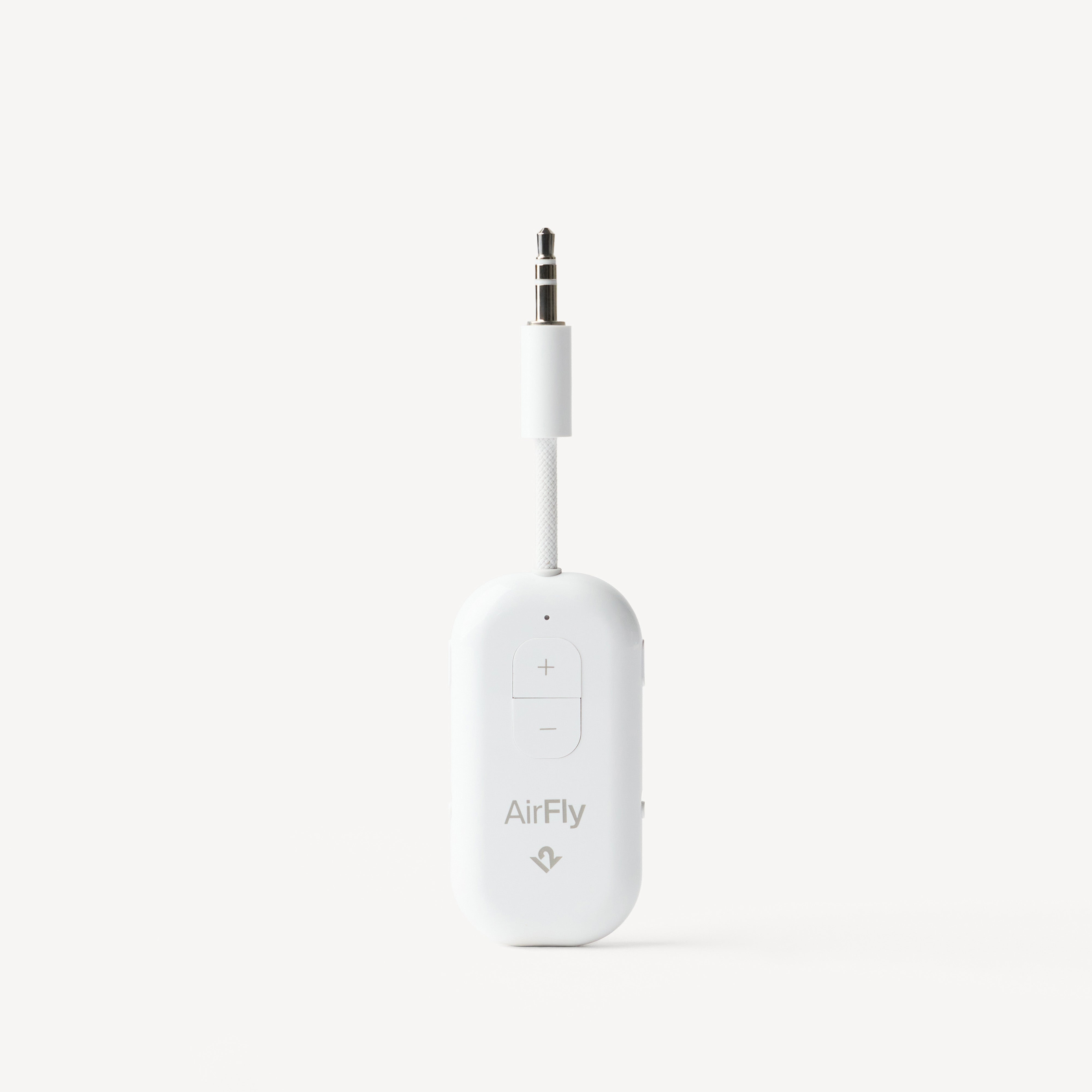
To use AirFly Pro 2 in your car, turn it on, switch to RX, select AirFly Pro 2 in your phone's Bluetooth settings, and plug it into the stereo's 3.5mm AUX-IN port. Select AUX on the stereo and start playback on your phone.
This is the other useful job for an adapter you may already carry for flights. On a plane, AirFly sends sound to your headphones. In the car, it receives sound from your phone and feeds the wired stereo. The switch changes the direction; pairing your headphones again will not help here.
Check the car's input first
You need a working 3.5mm AUX input, usually labeled AUX, AUX-IN or Audio In. A headphone socket is an output, not a substitute. Neither is an arbitrary USB charging port: this setup sends sound through AirFly's 3.5mm plug, not the car's USB socket.
If you are unsure whether the AUX input works, test it with a known-good wired audio source first. That is worth doing before spending time on Bluetooth pairing. Set up while parked, with the stereo volume low.
These instructions are for AirFly Pro 2, with separate PAIR 1 and PAIR 2 buttons. Original AirFly Pro instructions use different controls. Twelve South's TX/RX explanation confirms the distinction: RX takes phone or tablet audio to a wired AUX input; TX takes a wired source to wireless headphones.
Pair your phone in RX mode
Follow this order from the AirFly Pro 2 manual:
- Turn AirFly Pro 2 on with its ON/OFF switch. The front light flashes white twice.
- Move the side TX/RX switch to RX. The front light flashes white twice again; PAIR 1 should alternate white and amber for pairing.
- Open Bluetooth settings on your phone. With AirFly searching, select AirFly Pro 2 from the available devices. Unlike airplane TX setup, you do select AirFly on the phone here.
- Plug AirFly into the car's AUX-IN port after connecting the phone. Select the stereo's AUX source, play music or a podcast, and raise the phone and stereo volume gradually.
If PAIR 1 does not alternate white and amber, the manual says to hold PAIR 1 for four seconds. Use that only when needed: the same manual identifies this hold as the reset that clears paired-device memory. Be prepared to pair your flight headphones again afterward. PAIR 2 is not the button for this phone-to-stereo setup.
Connected, but no sound?
Work along the audio path instead of resetting immediately:
- Phone: Confirm AirFly Pro 2 shows as connected, playback is actually running, and media volume is up. Check that audio is not still routed to earbuds or another Bluetooth device.
- AirFly: Check that it is powered on and still in RX. TX is the wrong direction for sending phone audio into the stereo.
- Plug: Seat the 3.5mm connector fully in AUX-IN. Do not use a headphone output just because the plug fits.
- Stereo: Select AUX rather than radio, USB or the car's own Bluetooth input. Check the stereo's mute setting and volume.
If that chain looks right, test the car's AUX input with a wired source. If wired playback also fails, investigate the stereo, input selection or socket before changing AirFly's pairings. If wired playback works, return to the phone's Bluetooth connection and audio-output selection.
This guide is for media playback. Do not assume the AUX connection adds a hands-free microphone or the car's usual phone-call controls.
Switch back to TX for your flight
Unplug AirFly from the car and move its mode switch back to TX before using a seatback headphone output. Your phone is no longer the source for that setup; the screen is. Connect your wireless headphones to AirFly instead, following the AirFly Pro 2 and AirPods pairing guide if you need the button sequence.
For the hardware's broader travel uses, see our AirFly Pro 2 review.
RX mode is not AirFly Drive
AirFly Pro 2 in RX mode gives an AUX stereo a Bluetooth audio connection. It does not add CarPlay, Android Auto or phone apps to the dashboard.
The similarly named AirFly Drive is a different adapter for cars that already have wired CarPlay or wired Android Auto. Twelve South's Drive compatibility guidance explicitly excludes AUX-only vehicles. If your car has only AUX and you already own a Pro 2, RX is the relevant feature—not Drive.